Warehouse Shipment & Shipment Processing
Overview
Warehouse Shipments are used to control the picking, packing, shipping, and delivery process after a Sales Order has been released.
The Warehouse Shipment document ensures:
- Inventory is reserved
- Warehouse personnel receive picking instructions
- Shipment status is controlled
- Tracking information is maintained
- Shipping costs are recorded
- Customer deliveries are completed accurately
At FAM Powder Coating, Warehouse Shipments are created from released Sales Orders and serve as the primary document used by warehouse personnel to prepare customer orders.
Learning Objectives
After completing this lesson, users will be able to:
✓ Create Warehouse Shipments
✓ Understand the shipment workflow
✓ Place shipments On Hold
✓ Book shipments with carriers
✓ Record tracking information
✓ Record courier charges
✓ Understand internal shipping deadlines
✓ Complete shipment processing correctly
Warehouse Shipment Process Flow
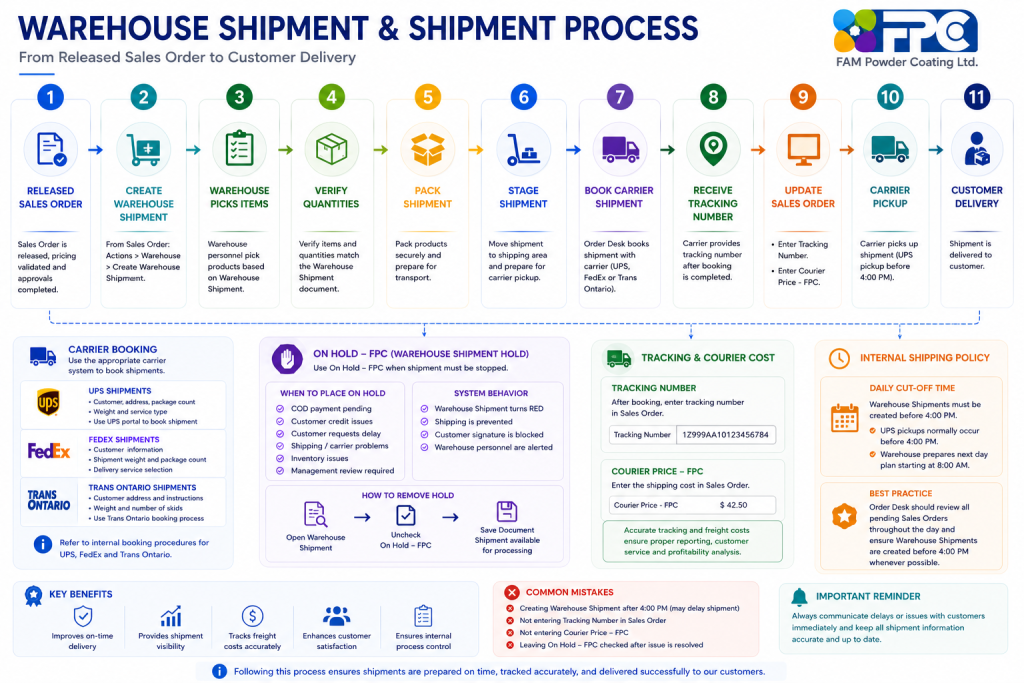
Creating a Warehouse Shipment
Step 1 – Release the Sales Order
Before a Warehouse Shipment can be created:
✓ Sales Order must be Released
✓ Pricing must be validated
✓ Required approvals must be completed
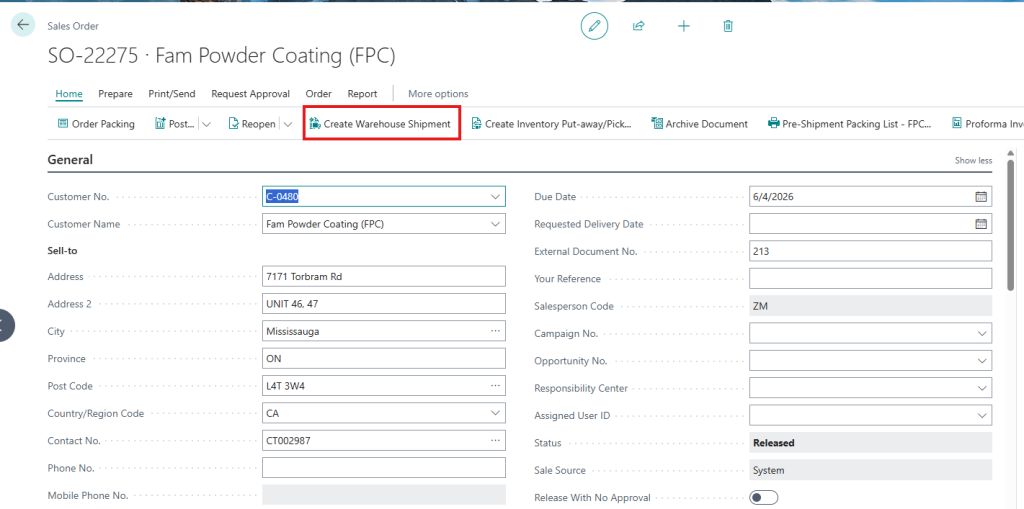
Step 2 – Create Warehouse Shipment
From the Sales Order:
- Select Actions
- Select Create Warehouse Shipment
Business Central creates a Warehouse Shipment document.
Warehouse Responsibilities
After the Warehouse Shipment is created:
Warehouse personnel must:
Pick Products
Retrieve products from inventory.
Verify Quantities
Confirm quantities match the Warehouse Shipment.
Pack Products
Prepare shipment for transportation.
Stage Shipment
Move shipment to shipping area for pickup.
Internal Shipping Policy
Daily Cut-Off Time
FAM Powder Coating policy requires:
Warehouse Shipments must be created before 4:00 PM
Reason:
- UPS pickups normally occur before 4:00 PM.
- Warehouse prepares the next day’s production and shipping plan beginning at 8:00 AM.
Orders released after the cutoff may not ship until the next business day.
Best Practice
Order Desk should review all pending Sales Orders throughout the day and ensure Warehouse Shipments are created before 4:00 PM whenever possible.
Booking a Shipment
After the Warehouse Shipment has been prepared:
Order Desk must book the shipment with the appropriate carrier.
UPS Shipments
Use the UPS shipping portal and internal UPS booking procedure.
Required information:
- Customer Name
- Customer Address
- Number of Packages
- Weight
- Service Type
Supporting Document:
FedEx Shipments
Use the FedEx shipping portal and internal FedEx booking procedure.
Required information:
- Customer Information
- Shipment Weight
- Package Count
- Delivery Service
Supporting Document:
Trans Ontario Shipments
Use the approved Trans Ontario booking process.
Required information:
- Customer Address
- Weight
- Number of Skids
- Delivery Instructions
Supporting Document:
📎 Trans Ontario Shipment Booking Procedure
Tracking Information
After the carrier booking is completed:
A tracking number will be provided.
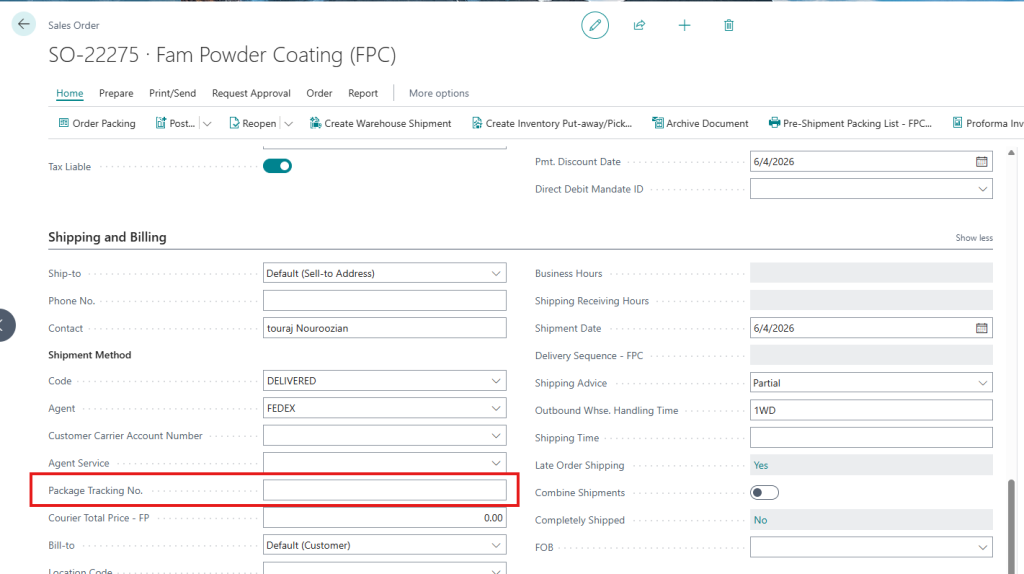
Tracking Number Entry
Order Desk must update the Sales Order.
Field:
Tracking Number
Enter:
- UPS Tracking Number
- FedEx Tracking Number
- Trans Ontario Reference Number
Example:
1Z999AA10123456784
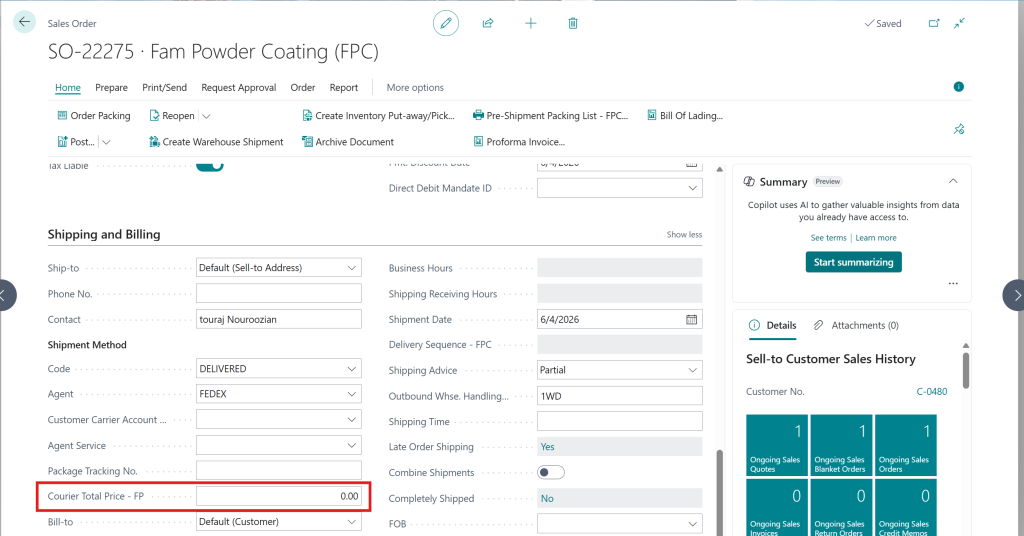
Courier Cost Recording
After shipping charges are confirmed:
Order Desk must update:
Courier Price - FPC
field on the Sales Order.
Purpose:
- Freight cost tracking
- Shipment profitability analysis
- Reporting
Example:
Courier Price - FPC = $42.50
Warehouse Shipment Hold Functionality
FAM Powder Coating uses a custom hold feature.
Field:
On Hold - FPC
located on the Warehouse Shipment document.
Purpose of On Hold
The shipment should be placed On Hold whenever shipping must be stopped.
Examples include:
COD Payment Pending
Customer payment not received.
Customer Credit Issues
Credit approval required.
Customer Request
Customer requests shipment delay.
Shipping Problems
Carrier unavailable.
Inventory Issues
Missing products or quantity discrepancies.
Management Review Required
Shipment requires approval before release.
System Behavior
When:
On Hold - FPC = TRUE
the system performs several actions.
Warehouse Shipment Turns Red
Provides visual warning to warehouse personnel.
Shipping Is Prevented
Shipment cannot proceed until hold is removed.
Customer Signature Is Blocked
Shipment completion is restricted.
Warehouse Personnel Are Alerted
Users immediately know shipment requires attention.
📷 Screenshot: On Hold – FPC
Removing a Hold
Once the issue is resolved:
- Open Warehouse Shipment
- Uncheck On Hold – FPC
- Save Document
The shipment becomes available for processing.
Best Practices
✓ Create Warehouse Shipments before 4:00 PM
✓ Verify quantities before shipping
✓ Book carrier immediately after packing
✓ Enter Tracking Number immediately after booking
✓ Record Courier Price – FPC accurately
✓ Use On Hold – FPC whenever shipment should not proceed
✓ Remove holds promptly once resolved
✓ Communicate delays to customers
Common Mistakes
Missing Tracking Number
Prevents shipment tracking and customer support.
Missing Courier Price
Causes inaccurate freight reporting.
Late Warehouse Shipment Creation
May delay shipping by one business day.
Forgetting to Remove Hold
Shipment remains blocked unnecessarily.
Lesson Summary
After completing this lesson, users should be able to:
✓ Create Warehouse Shipments
✓ Book shipments with UPS, FedEx, and Trans Ontario
✓ Record tracking numbers
✓ Record courier costs
✓ Understand the 4:00 PM shipping cutoff policy
✓ Use On Hold – FPC correctly
✓ Manage shipments from release to delivery
